Guide
How to join invoice line items that continue on the next page
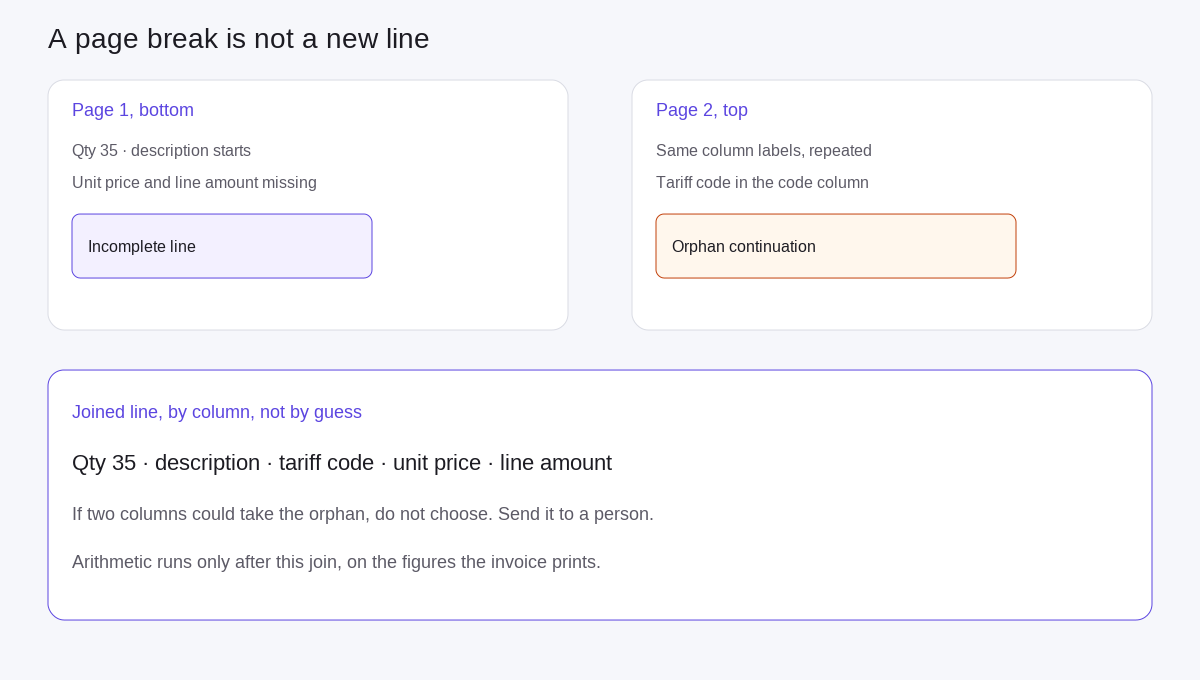
Short answer: A page break is not a new invoice line. Extract the table on each page, detect a repeated header, and attach an orphan continuation row to the last incomplete line by column alignment. Then check the printed figures: quantity times unit price equals the line amount, the lines sum to the net, and net plus VAT equals the gross. If they do not add up, stop for a person. Do not rewrite a number to force the sum.
How do you join invoice line items that continue on the next page?
Extract the table on each page. Detect a repeated header. Attach an orphan continuation row to the last incomplete line by column alignment, not by a guess about the words. Then check the printed figures. If they do not add up, stop and send the document to a person. Do not rewrite a number to force the sum.
The phrases invoice line items across pages, join invoice rows page break, orphan continuation row invoice, and OCR table split across pages all name this same job. The join is a rule you apply to the cells. It is not a sentence you add to a prompt.
- Extract the table on each page. Keep the cell positions, the column edges, and the header row. Do not assume the extractor already holds one continuous table in memory.
- Detect a repeated header at the top of the next page: the same column labels, at similar widths. Ignore running headers, footers, and page numbers.
- Find orphan continuation rows: empty leading cells, a wrapped description, or values in the columns the previous line left empty.
- Attach the orphan to that last incomplete line by column alignment. If the alignment is ambiguous, do not guess.
- Only then run the arithmetic on the printed figures, and stop when they do not add up.
Why does a page break split an invoice line item during OCR or document extraction?
A page break ends the visual row. The extractor sees the bottom of one page and the top of the next as separate layout, so it treats the first fragment as a finished or nearly finished line and the next fragment as a new row or a field on its own.
A public example of the question, asked on Microsoft Q&A on 6 March 2026, puts a quantity at the bottom of one page and a tariff classification at the top of the next. The classification belongs to the same line. Because it is on the next page, the extraction leaves the code off that line. The Microsoft External Staff reply of 10 April 2026 says the extractor does not keep a continuous document memory of the table once the page ends: the next fragment has no visual link to the row above.
Is there a setting that automatically merges table rows across pages?
No. On 10 April 2026, Microsoft External Staff replied on Microsoft Q&A that there is no setting, schema tweak, or flag that automatically stitches a row across pages. The question was asked on 6 March 2026. That reply is about the product named in the thread. It is cited here as the place the question was asked, not as a recommendation.
The reply's practical pattern is the one this page spells out: extract first, then join in your own logic, using page order and where the cells sit. It is not a switch inside the extractor.
Do prompt hints help an extractor join a line item that spans two pages?
No. The same reply says that field descriptions which say a value may span pages do not change the behaviour, and that further prompt hints and header variations improve extraction inside a page, not the join across pages. Do not spend the design on another hint. Do the join after extraction, with rules you can check.
The person who asked had already written that a field may continue across a page boundary. The extraction still did not attach the next page to the previous row. More wording in the same place will not do that job.
What is an orphan continuation row on an invoice?
An orphan continuation row is the fragment at the top of the next page that still belongs to the last line of the previous page. It is not a new item. Typical signs are an empty leading cell, a description that continues a phrase, or a value sitting in a column the previous line left blank.
Treat it as unfinished business from the line above. If you post it as its own item, the ERP receives a row with no quantity, or a quantity with no amount, and the later arithmetic is checking the wrong lines.
How do you detect a repeated table header after a page break?
A repeated table header is the same column labels, at similar widths, at the top of the next page. Ignore a running page header, a footer, and a page number. Those repeat too, and they are not the table.
Compare the labels and the column edges with the header on the previous page. A header that repeats is evidence the table continued. It is not itself a line item, so do not append it as a row and do not let it reset the line numbers.
How should you attach a continuation row to the last incomplete line (column alignment)?
Put each orphan cell into the column it lines up with on the last incomplete line. Signs that line is incomplete: a missing unit price or amount, a description that ends mid-phrase, or a line number that does not step forward on the next page. If two columns could take the same cell, do not choose. Send the document to a person.
Column alignment means the cell's horizontal place, not a reading of what the text probably means. A tariff code lands in the classification column because that is where the column is, not because a model prefers that sentence. When the place is unclear, the honest result is a person, not a completed row.
How should you validate invoice line items after joining them (quantity × unit price, net, VAT, gross)?
After the join, and only then, check the printed figures in this order. Quantity times the unit price should equal the line amount. The sum of the lines should equal the net. The net plus VAT should equal the gross. This order is the same one in the confidence-thresholds guide. Do not contradict it, and do not treat a successful join as permission to post.
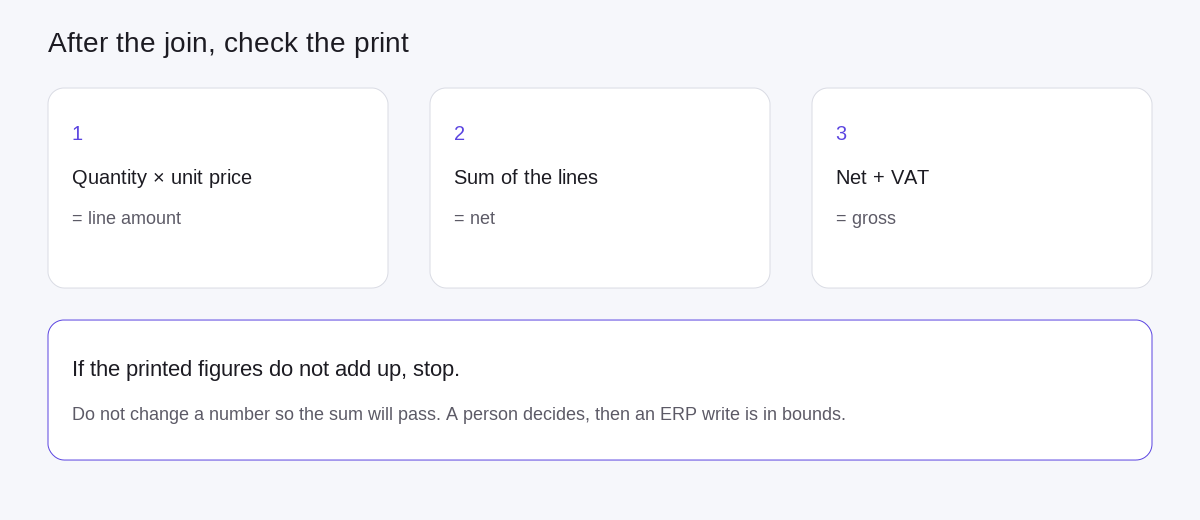
Do the arithmetic on the figures the invoice prints, in the invoice's own currency. A one-cent difference from rounding is a rule you should write down. A difference of a whole tax amount is not rounding.
What should happen when the printed figures do not add up after a join?
Stop. Keep the figures printed on the invoice and send the document to a person. The difference may be a reading error, or it may be the supplier's own arithmetic. A person decides which, records the decision, and only then can the invoice move on.
On an invoice, DocSolved runs automatic totals checks and compares the totals with the line items. If the amounts printed on an invoice do not add up, it keeps the values shown in the original document and flags the inconsistency. The document is marked Needs review. The value is shown beside the page. Where a position on the page was found, selecting the field highlights that snippet. A box is not drawn when no position was found. DocSolved does not change a value to make totals add up. Quantity times unit price, as a separate named product rule, is not what that check is. The check compares the totals with the line items and flags them when they do not add up.
Should you rewrite an invoice total so the lines add up before an ERP write?
No. Do not replace a printed total with a calculated one so an ERP will accept the document. If the supplier's print does not add up, the calculated sum is a different document from the one you received. The confidence-thresholds guide states the same rule.
If the values are right and the difference is real, the confidence-thresholds guide tells the reviewer to keep the print and say why: the document itself does not add up, or the check does not fit this document. Nothing is recalculated.
What still has to happen before an ERP write
The join is necessary. It is not sufficient. After a clean join, the invoice still needs the other checks from the confidence-thresholds guide where they apply: the vendor and the purchase order as a process step, a duplicate block, and a review of the value against the source page. Carrying an order reference, or grouping related documents, is not an automatic three-way match against goods received. A successful join does not post the invoice. A person, or a system you control, writes to the ERP after the checks.
Read that checklist here: How to set OCR confidence thresholds so invoice errors never reach the ERP.
Where DocSolved fits, and where it does not
DocSolved does not join a line item across a page break. It does not stitch an orphan row onto the line above it. Multi-page PDFs are supported, and only the first 5 pages are analysed. Pages after that are not part of the extraction. An export of a longer file says that only the first pages were analysed and that totals and line items from the remaining pages are missing. That limit is not a merge feature.
What DocSolved does do, on the pages it reads, is the check after the figures exist: automatic totals checks, the totals compared with the line items, and a Needs review flag when they do not add up, with the value beside the page. You can see a totals disagreement, not a multi-page join, on the invoice review demo. No account is needed.
- User Guide
- Document extraction for business workflows
- LLM or OCR pipeline? When a general AI model is enough for document data. That guide treats arithmetic as a validation layer. It is not the source of this join recipe.
- When is an AI agent in accounts payable actually auditable?
- Why does the OCR provider bill more pages than your app counted?
A short test on 20 to 30 invoices
Take 20 to 30 multi-page invoices that already have a known split line. Extract each page. Apply the join rules. Then run the arithmetic on the printed figures.
- Count how many lines would have posted incomplete, with a quantity and no amount, or a fragment posted as its own row.
- Count how many joins were unambiguous from the columns alone.
- Count how many still needed a person, because the alignment was ambiguous or the printed figures did not add up.
The result is a count on your own invoices. This guide does not offer a percentage to aim at.
The same answer, in one sentence
Join the orphan to the last incomplete line by column alignment, check the printed arithmetic, and do not rewrite a number to force the sum.
The wider checklist, including what to do when the print itself does not add up, is in How to set OCR confidence thresholds so invoice errors never reach the ERP.
Sources
- Microsoft Q&A, Handling line items that span multiple pages, question 6 March 2026, Microsoft External Staff reply 10 April 2026. Cited as the place the question was asked, and for the points above about settings and prompt hints. Not a product recommendation. The unverified percentage in that reply is not used here.
- DocSolved, How to set OCR confidence thresholds so invoice errors never reach the ERP. For the arithmetic order, for not changing a number to force the sum, and for the wider checks before an ERP write.
- DocSolved User Guide.
- DocSolved, document extraction for business workflows.
- Invoice review demo. A totals disagreement flagged for review. It does not show a multi-page join.
- LLM or OCR pipeline? When a general AI model is enough for document data. Arithmetic as a validation layer. Not the source of the join recipe.